Help Center
Use this guide to understand how quote calculations, account access, booking workflows, and policy terms work across the Freight Services portal. A self-service workflow guide is included below for rapid quote-to-booking actions.
Application Purpose
The Quote Tool is a web application for generating rapid freight quotes for Hotshot (expedited truck) and Air shipments. Users can register, calculate quotes, and email details; all quotes are saved to the database for future lookup.
Standard Formulas
Dimensional Weight (Dim Weight):
((Length × Width × Height) / 166) × Pieces
Billable Weight:
The system bills based on the greater of the two values: Max(Actual Weight, Dimensional Weight).
Signing In
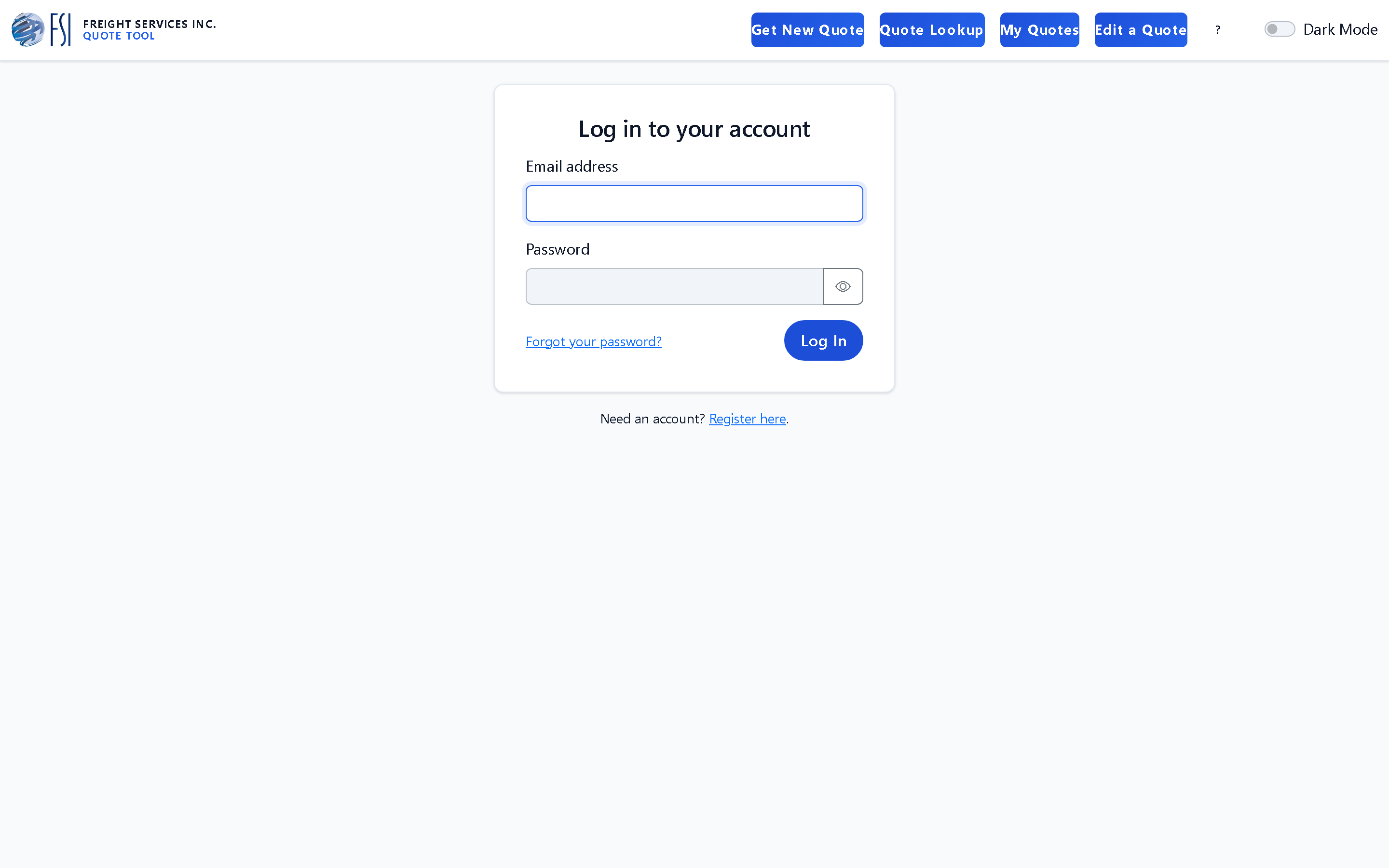
Sign in from the login page with your registered email and password to reach the quoting dashboard. If you have forgotten your password, use the password reset guide.
Your Profile & Preferences
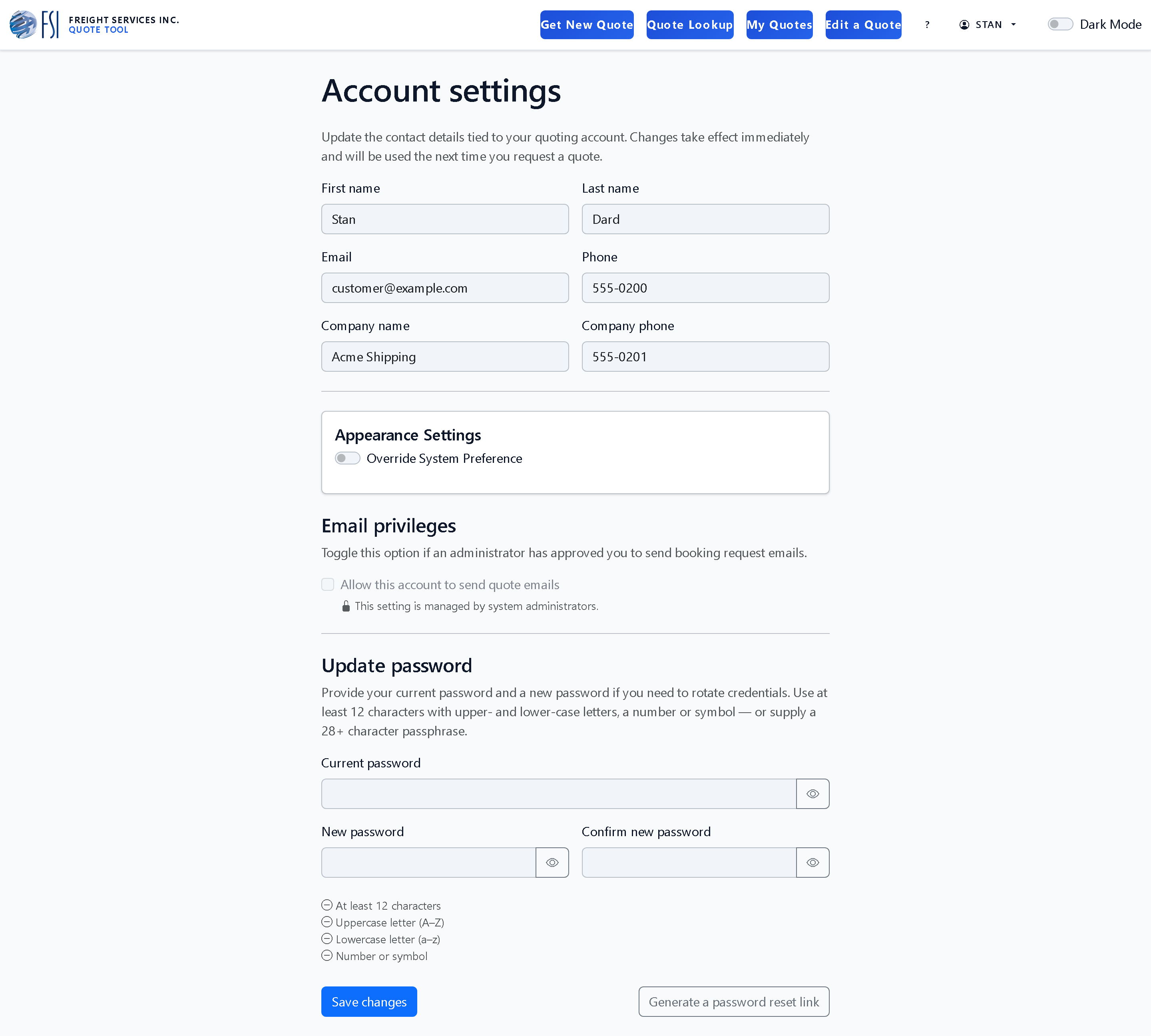
Open Settings from the user menu to keep your contact details and signature current so automated quote emails show the right information.
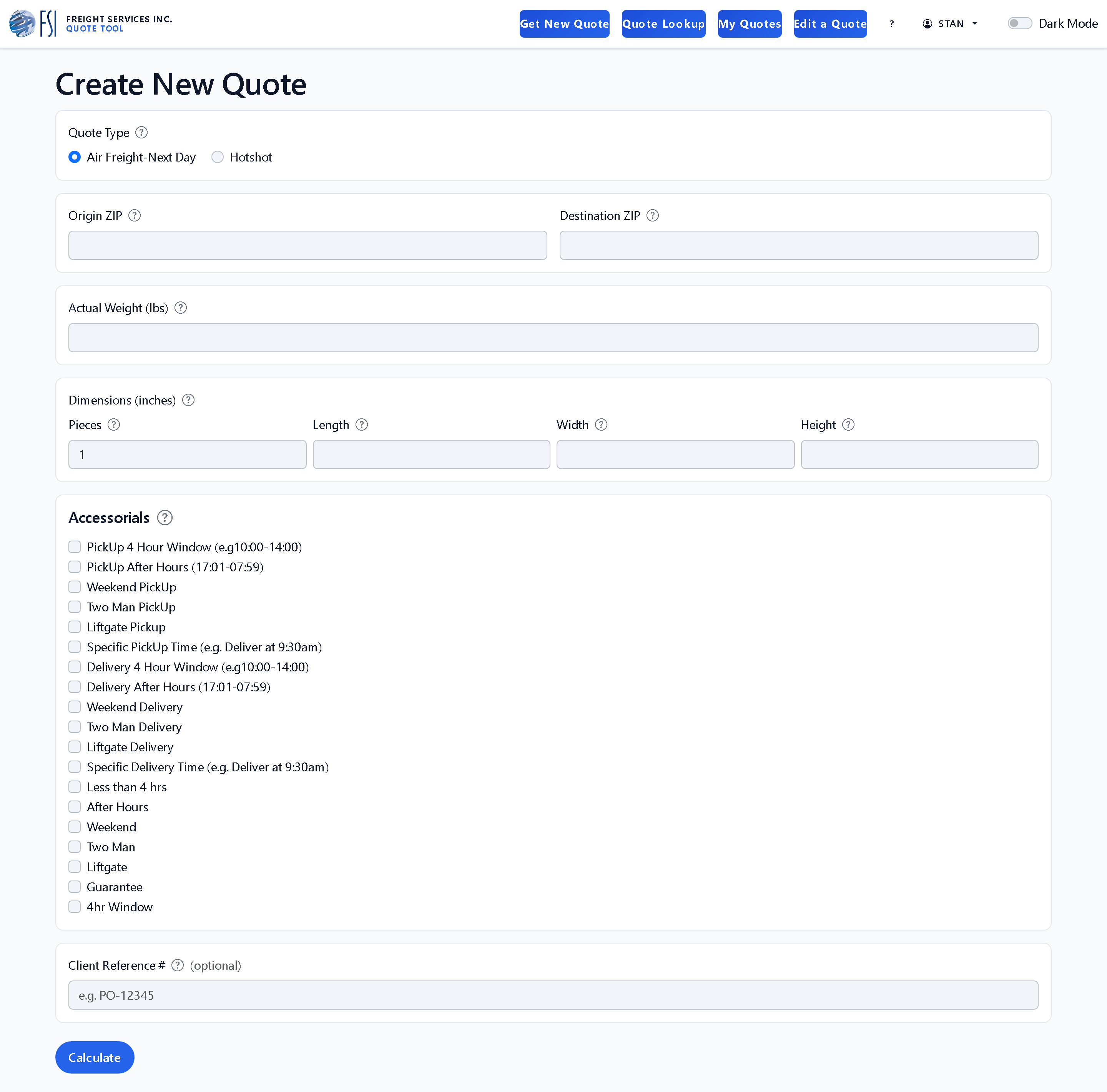
Required Inputs
- Origin ZIP code
- Destination ZIP code
- Total weight
- Number of pieces
- Service type (Hotshot or Next Day Air)
- Any required accessorial services (for example, liftgate, residential delivery, limited access)
Quote Result Breakdown
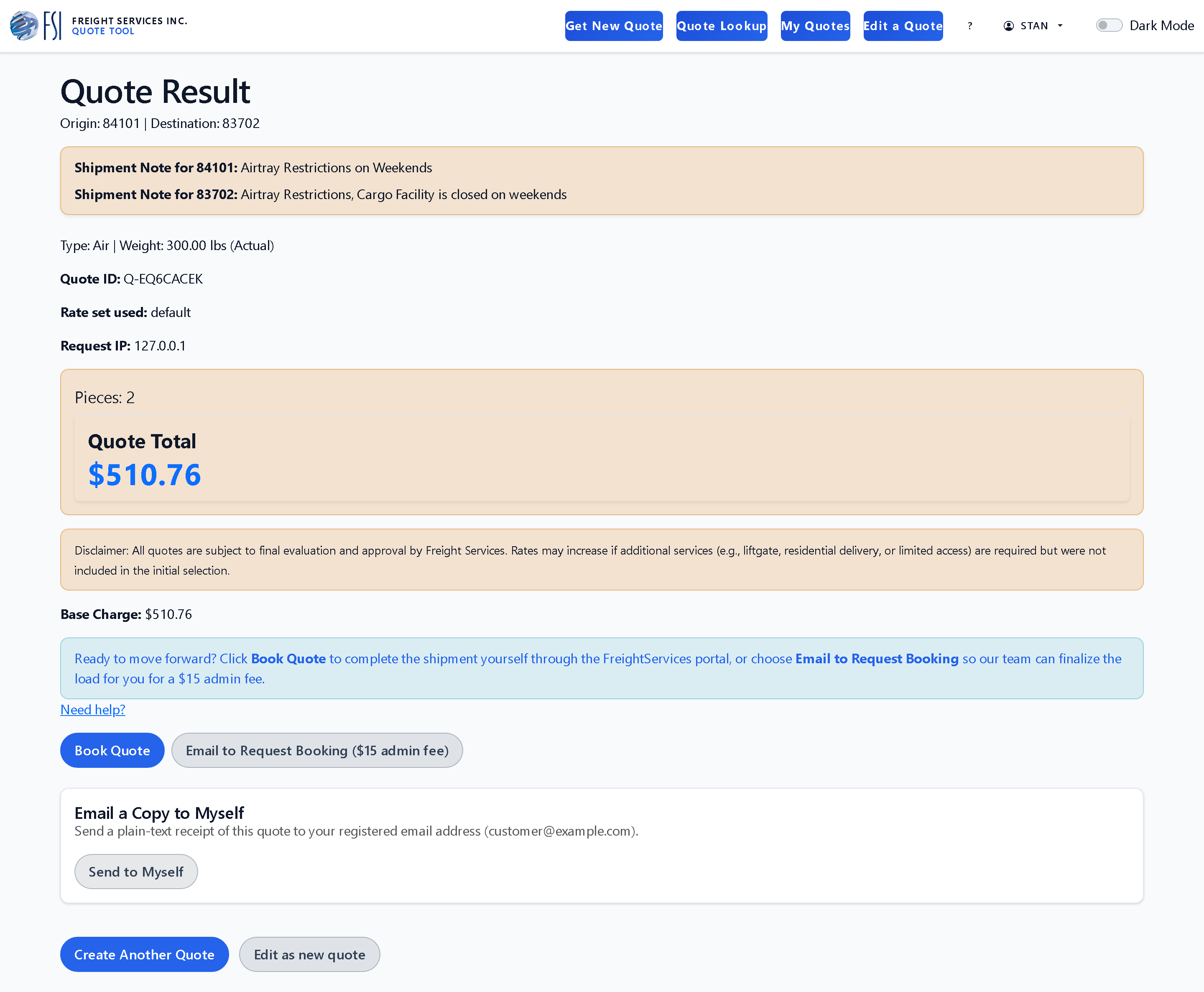
After you submit a quote request, review the following fields before continuing:
- Base Charge: core transportation rate based on service, distance, and shipment details.
- Accessorials: itemized costs for selected specialized services.
- Total Miles: estimated route distance used for quote generation.
- Warnings: highlighted notices when shipment details exceed standard thresholds.
Always validate that the quote matches shipment requirements before selecting a booking pathway.
Booking and Sharing Options
- Book Directly via TS2000: Select Book Quote to continue in the Freight Services TransSoft portal.
- Email for Operations Booking: Select Email to Request Booking to have operations finalize the load.
- Save/Share Quote: Use Send to Myself for your own copy, or Email this quote summary (staff-level accounts) to send customer-ready details.
Important Disclaimers
- All automated quotes are subject to final evaluation and approval by Freight Services Inc.
- Rates may increase when shipment requirements differ from original quote inputs, including missing accessorial services.
Website Terms of Use
Review the complete Freight Services website terms, including arbitration language, class action waiver, liability disclaimer, intellectual property restrictions, and contact information.
Overview
The FSI self-service quote workflow helps customers rapidly price shipments and move directly to booking.
- Domestic door-to-door next day air freight.
- Direct point-to-point hotshot cargo runs.
Generating a Quote
Enter origin and destination ZIP codes, shipment weight, piece count, service level, and any required accessorials.
Reviewing Results
- Base Charge: Core transportation rate.
- Accessorials: Itemized specialized service charges.
- Total Miles: Estimated shipment distance.
- Warnings: Highlighted notices when thresholds are exceeded.
Managing and Finalizing Shipments
- Book Directly via TS2000: Use Book Quote to continue in the Freight Services TransSoft portal.
- Email for Operations Booking: Use Email to Request Booking to have operations finalize shipment entry.
- Save and Share: Use Send to Myself for your receipt, or Email this quote summary for staff-driven customer updates.
Important Disclaimers
- All automated quotes are subject to final review and approval by Freight Services Inc.
- Rates may increase when final shipment requirements differ from quote inputs.
Threshold Warnings
The system issues warnings to ensure specialized handling for large or high-value loads:
- Air Service: A warning is generated if billable weight exceeds 1,200 lbs.
- General Limits: A warning is generated if billable weight exceeds 3,000 lbs or if the quote total exceeds $6,000.
Air Freight Restrictions
Air service validation will fail if the billable weight per individual piece exceeds 300 lbs (calculated as billable weight ÷ pieces). The live estimate applies the same limit as you type, so an over-limit shipment is flagged in the sidebar — with no running total — before you finish filling in the form.